How to hyperlink to a specific location on a long web page?

For those looking for a quick answer, here it is:

Put in the pattern in the address bar: <URL>#<HTML Element ID>

For example:

https://technet.microsoft.com/en-SG/library/cc262787.aspx#ContentDB

https://msdn.microsoft.com/en-sg/library/ff877884.aspx#AvailabilityModes

If you would like to read a discussion on this topic, feel free to move on. Otherwise, the answer above is all you need to know. 😉

When you are sharing a webpage with others, it may be frustrating for the reader to find the exact content you are sharing when the webpage is long. What if you can direct the reader to the exact location through the hyperlink you are sharing? For example, on a lengthy TechNet Article about SharePoint limitations, the reader is directed to the Content Database limitations directly when opening the page with this hyperlink: https://technet.microsoft.com/en-SG/library/cc262787.aspx#ContentDB

The trick lies in the suffix “#ContentDB” in the URL. So the question this post is trying to answer is how to determine what to add to the end of the URL for navigating the users to a specific location on the webpage directly?

We know in HTML we can assign an ID to a tag such as <p id=”something”></p>, which is the unique identifier of the this is specific element. You can then use this ID to locate the content to share. Not every element on a webpage has an ID attribute though. So having an ID is the prerequisite for locating the content directly.

How to find the ID of the location you are sharing if any? There are two ways, the easy way and the hard way.

The easy way exists when there are internal hyperlinks on a webpage, i.e. the hyperlink points to a location on the same page. In this case you can copy the hyperlink directly and share with others. For example, on TechNet articles, you constantly see hyperlinks to the same page.

 Hyperlinks

The hard way comes when there is no internal Hyperlink on the webpage. You will need to check the source code of the webpage for any ID that can be used.

One-pic-4-a-thousand-words

Move SharePoint 2013 Search Index Location

Task: Move search index from D: drive to E: drive on the existing Index Servers.
Search topology:

Search_Topology

Preparation:

#Discover current search topology information with documentation.

$ssa = Get-SPEnterpriseSearchServiceApplication
$old = Get-SPEnterpriseSearchTopology -SearchApplication $ssa -Active
Get-SPEnterpriseSearchServiceApplication >C:\SSA_Info.txt
Get-SPEnterpriseSearchComponent -SearchTopology $old >c:\oldtopology.txt
Get-SPEnterpriseSearchStatus -SearchApplication $ssa

#Define parameters for the move.

<# $hostA = Get-SPEnterpriseSearchServiceInstance -Identity "Server1" $hostB = Get-SPEnterpriseSearchServiceInstance -Identity "Server2" #>
$hostC = Get-SPEnterpriseSearchServiceInstance -Identity "Server3"
$hostD = Get-SPEnterpriseSearchServiceInstance -Identity "Server4"
$hostE = Get-SPEnterpriseSearchServiceInstance -Identity "Server5"
$hostF = Get-SPEnterpriseSearchServiceInstance -Identity "Server6"
$indexPath = "E:\Search_Index01"

#Clone the current active topology

$clone = New-SPEnterpriseSearchTopology -SearchApplication $ssa -Clone -SearchTopology $old

#To the cloned topology, add new Index components using new path.

New-SPEnterpriseSearchIndexComponent -SearchTopology $clone -SearchServiceInstance $hostC -IndexPartition 0 -RootDirectory $indexPath
New-SPEnterpriseSearchIndexComponent -SearchTopology $clone -SearchServiceInstance $hostD -IndexPartition 0 -RootDirectory $indexPath
New-SPEnterpriseSearchIndexComponent -SearchTopology $clone -SearchServiceInstance $hostE -IndexPartition 1 -RootDirectory $indexPath
New-SPEnterpriseSearchIndexComponent -SearchTopology $clone -SearchServiceInstance $hostF -IndexPartition 1 -RootDirectory $indexPath

#Set the new (cloned) topology as active. This step takes the most time.

Set-SPEnterpriseSearchTopology -Identity $clone

#Discover the component info in the new topology.

Get-SPEnterpriseSearchComponent -SearchTopology $clone >c:\InterimTopology.txt

#Confirm that all the components are ready. Also check in the Central Admin Site for the status.

Get-SPEnterpriseSearchStatus -SearchApplication $ssa

Remove the older index components. ONLY DO THIS AFTER NEWLY ADDED INDEX COMPONENTS ARE ACTIVE. You need to clone the latest topology and modify the new cloned topology. Then set the new clone as active when modification is done. Double Check in the InterimTopology.txt the info on the components to identify the components to remove.

IndexPartitionOrdinal : 0
RootDirectory : E:\Search_Index01
ComponentId :
TopologyId :
ServerId :
Name : IndexComponent4
ServerName : SearchServer04

$active = Get-SPEnterpriseSearchTopology -SearchApplication $ssa -Active
$newclone = New-SPEnterpriseSearchTopology -SearchApplication $ssa -Clone -SearchTopology $active

$comp1=Get-SPEnterpriseSearchComponent -SearchTopology $newclone | ? {$_.Name -eq "IndexComponent1"}
$comp2=Get-SPEnterpriseSearchComponent -SearchTopology $newclone | ? {$_.Name -eq "IndexComponent2"}
$comp3=Get-SPEnterpriseSearchComponent -SearchTopology $newclone | ? {$_.Name -eq "IndexComponent3"}
$comp4=Get-SPEnterpriseSearchComponent -SearchTopology $newclone | ? {$_.Name -eq "IndexComponent4"}

Remove-SPEnterpriseSearchComponent -Identity $comp1 -SearchTopology $newclone
Remove-SPEnterpriseSearchComponent -Identity $comp2 -SearchTopology $newclone
Remove-SPEnterpriseSearchComponent -Identity $comp3 -SearchTopology $newclone
Remove-SPEnterpriseSearchComponent -Identity $comp4 -SearchTopology $newclone

Set-SPEnterpriseSearchTopology -Identity $newclone

# Optionally, you can use a for loop to run through a list of components to remove. But I prefer the lines above as it shows explicitly the actual action to take.

#Confirm that all the components are ready. Also check in the Central Admin Site for the status.

Get-SPEnterpriseSearchStatus -SearchApplication $ssa

#Discover the component info in the final topology.

Get-SPEnterpriseSearchComponent -SearchTopology $newclone >c:\FinalTopology.txt

#Remove the old topologies

Get-SPEnterpriseSearchTopology -SearchApplication $ssa
Remove-SPEnterpriseSearchTopology -Identity < > 

Getting Rid of GUIDs in DB names in an Exiting SharePoint Farm

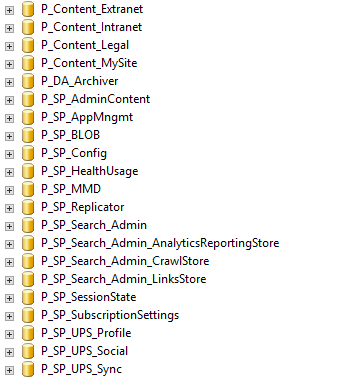
DBAs hate the GUID appended to a database name. Everyone does! But that will happen if the farm and the Service Applications within are created with a wizard.

Example:

With_GUIDs

To make sure the database names are “clean”, farm admins can create the farm using psconfig.exe and create the Service Applications and Content Catabases with PowerShell. But what if a farm has been created and the databases already have GUID in their names? When you just take over a new farm, this may be the case, and you may be lucky enough to be assigned the task to change the names. 🙂

Just do the steps below to get rid of the GUIDs:

For the Central Administration site content database, you need to move the site to a new Content Database. Follow the steps:

  1. Create a new databases with proper names and configuration.
  2. Move the sites with Move-SPSite PowerShell cmdlet to move the sites to the new databases.
  3. Verify the sites are working correctly after the move.
  4. Delete the old databases.

For the user Content Databases, you can rename the databases. Follow the steps:

  1. Dismount the database from SharePoint Web Applications with Dismount-SPContentDatabase PowerShell cmdlet.
  2. Rename the dismounted database in SQL Server with ALTER DATABASE T-SQL command or in the Object Explorer.
  3. Mount the renamed database to SharePoint Web Applications with Mount-SPContentDatabase PowerShell cmdlet.

For Service Application databases, you need to rename the databases with additional actions and it is specific to each service application. Check this TechNet article to find information for the service applications you are using.

Example:

No_GUIDs

Done!

Getting Prompted for Login Repeatedly

If you encounter repeated login prompt even when the credential entered is correct, there are some common solutions that can help. If the issue persists after all these solutions are in place, systematic troubleshooting will be needed.

Here are the common areas to check, on the clients and the servers.

Client Side Solutions

Add the team Web site to the list of trusted intranet sites

To do this, complete the following steps:

  1. On the Internet Explorer toolbar, click Tools, and then click Internet Options.
  2. In the Internet Options dialog box, click the Security tab, and then select Local intranet.
  3. Click Sites, and then click Advanced.
  4. Type the URL of the team Web site in the Add this Web site to the zone box, click Add, and then click OK.

Bypass proxy server for local addresses

To bypass your Internet proxy for local addresses in Microsoft Internet Explorer 5 or later, complete the following steps:

  1. On the Internet Explorer toolbar, clickTools, and then click Internet Options.
  2. In theInternet Options dialog box, click the Connections tab, and then click LAN Settings.
  3. UnderProxy server, select the Bypass proxy server for local addresses check box, and then click OK.

Make sure Integrated Windows Authentication is enabled.

Make sure Integrated Windows authentication is enabled in IE. (Tools >> Internet Options >> Advanced >> under security, enable integrated authentication)

Add the entry to the Credentials Manager

  1. Go to Start > Run and type in control keymgr.dll to open the Windows key manager.
    Alternatevily: navigate to Contorl Panel > User Accounts > Manager Windows Credentials
  2. Select Add a generic credential
  3. Add yourSharePoint site URLlogin and password to the corresponding fields. If this entry already exists, edit it to have your login credentials.
  4. Reboot the computer.

If you are missing the Add button, you may want to modify Windows Registry to be able to save the password.

Note: for editing Windows Registry, administrator rights are required. Editing Windows Registry is not safe and users will perform it at their own risk.

  1. In Windows, go to Start > Run and enter regedit.
  2. Navigate to HKEY_LOCAL_MACHINE\System\CurrentControlSet\Control\Lsa\.
  3. Find the DisableDomainCreds A value of 1(enabled) will prevent you from saving new credentials.
    Change the value to 0 and reboot. Now you should have the Add button available. Note that 0 is the default value.
  4. Also check the LmCompatibilityLevel It should be set to 3, which is the default value. If you have another value, change it to 3. If it does not work with 3, then also try it with 2.
  5. Reboot the computer to apply changes.

If the client PCs are using Windows 7, some hotfixes may be needed:

https://support.microsoft.com/en-us/kb/943280

The solutions below are specific to the “Open with Explorer” function. If you get prompted for login repeatedly when using “Open with Explorer” after trying the configurations above, you can try the solutions below.

Restart WebClient Service

  1. Click Start > Run
  2. Enter ‘services.msc’
  3. Find the WebCient service and select Restart

Check Internet Explorer Version

  • Windows 7: Internet Explorer 10 is not yet compatible with the You will need to revert to Internet Explorer 9.
  • Windows 8: Internet Explorer 10 is compatible, so you should not have an issue with this OS and browser version combination.

Server Side solutions

Specify Host Names on each SharePoint Web Front End. (Preferred method over disabling loopback check)

To do this, follow these steps for all the nodes on the client computer:

  1. Click Start, click Run, type regedit, and then click OK.
  2. In Registry Editor, locate and then click the following registry key:

HKEY_LOCAL_MACHINE\SYSTEM\CurrentControlSet\Control\Lsa\MSV1_0

  1. Right-click MSV1_0, point to New, and then click Multi-String Value.
  2. Type BackConnectionHostNames, and then press ENTER.
  3. Right-click BackConnectionHostNames, and then click Modify.
  4. In the Value data box, type the host name or the host names for the sites that are on the local computer, and then click OK.
  5. Quit Registry Editor, and then restart the IISAdmin service.

Client and Server Coordination

Make sure the NTLM Level is the same among Domain Controllers, SharePoint Servers and Clients

This can be pushed down from a Domain Controller using GPO (Group Policy Object).

  1. Use Group Policy Editor (GPE) to open the Group Policy Object (GPO) you want to modify. You can create a policy that applies to the OUs that contains the DCs, SharePoint Servers, and user clients.
  2. Navigate to Computer Configuration, Windows Settings, Security Settings, Local Policies, Security Options.
  3. Double-click the “Network security: LAN Manager authentication level” policy.

You can choose a level that is acceptable to your internal security policy, Just make sure you use the same level across DCs, SharePoint Servers and clients.

  1. Select “Define this policy setting” and from the drop-down menu select the desired level.
  2. Click OK.
  3. Close the GPO.
  4. To make the modification effective immediately, run gpupdate /force on all the servers and clients.

One Single IP:port for Multiple SSL Enabled Sites, each with a Different SSL Certificate

In a real-world production environments, there can be multiple web applications in the same farm that use different host headers but the same port, which is often 80/443. This is not an issue when SSL is not implemented. When the request reach the web server, IIS will direct the request to specific sites based on the host header. However, if SSL is to be implemented and all the sites will be using the same port, there will be a problem with the certificate as network end-point can only be identified with IP:Port binding. In the old days, two possible solutions are:

  • Use two IPs on the same server, so that each IIS site can use a different certificate. This is should not be too difficult when the WFEs are virtualized.
  • Use a wildcard certificate so all the web applications can use the same certificate as long as they share the same domain.  If not, you may want to choose a Unified Communications Certificate if that really is a preferred solutions in your situation.

With Windows Server 2012 or above, you have the third option that comes with the Server Name Indication feature of IIS 8. This feature makes it possible that the host name in the IIS binding be used to identify the network endpoint. In this case, different IIS sites can use the same IP address and port while using different certificates. However, it requires the client browsers to support SNI. If not, you need to create a default SSL site. Check this blog post for more information: http://blogs.msdn.com/b/kaushal/archive/2012/09/04/server-name-indication-sni-in-iis-8-windows-server-2012.aspx

Why you need to host Intranet and Internet sites in separate farms?

If you have both Intranet sites and a public facing portal, it is usually recommended to host them separately in their own farms instead of sharing the same farm. Some may argue that these two types of site can actually be hosted on the same farm as long as they are separate web applications using different application pools and even separate instances of the same service applications. However, there still are factors to be considered:

  • Security – The servers of Internet-facing website are close to external access. It is a recommended security practice to separate servers hosting intranet from those serving internet-facing websites. In this case, intranet farms servers could be placed in an internal network zone with no internet access.
  • Performance optimization – Intranet sites and internet-facing web site have different usage patterns. Internet-sites are primarily read-intensive, while intranet sites have more user updates. The configuration for these two types of environment are different. For example, in database server hosting content databases, the transaction log files of write-intensive databases should be put in a faster drive than that of the data files. For read-intensive databases, the configuration is quite the other way.
  • Scalability – The growth pattern and scaling requirement is usually different between intranet websites and internet websites. Take the sizing of one of my customers’ SharePoint farm as an example, the intranet portal has a content database of more than 50 GBs while the total size of each of the internet web applications is only around 1 GB. The user traffic growth pattern may be different as well. The intranet traffic is basically predictable based on the growth of internal users. That of the internet farm may change quite drastically if the website becomes more and more popular.
  • Maintainability – The maintenance schedule is usually different between internal intranet and internet-facing sites. Farm maintenance task often involves, solution deployment, IIS reset and even server reboot. Separating sites into two farms will ensure maintenance on Intranet farm does not impact the internet-facing websites. What is more, internet-facing sites have the most stringent SLA. Correspondingly, a dedicated high availability and maintenance schedule should be implemented.

T-SQL looks like English but thinks like Chinese.

T-SQL is so intuitive that any English speaker could acquire it without too much effort. Taking the SELECT clause as example:

SELECT empid, custid, orderid
FROM sales.orders
WHERE custid = 33;

The statement above is a typical simple T-SQL statement to fetch certain content matching the defined conditions.  Does it look like

GRAB a tablet, a cellphone and a laptop, FROM my office’s server room, and MAKE SURE all the gadgets are Apple products“?

The sentence above is what English speakers would say with comfort. One can see that the T-SQL statement and the English sentence are using exactly the same order in expressing each constituent of the statement: action > location > condition.

However, at the backend of T-SQL, the elements of the SELECT statement are processed in a different order than how it looks. The order is:

FROM > WHERE > SELECT (location > condition > action)

This is exactly the order how Chinese is spoken: 去机房把苹果笔记本,苹果平板和苹果手机拿过来。It literally means “go to the server room, (ba) Apple laptop, Apply tablet, Apple cellphone, bring over.”

The order is location > condition > action!

Can we say Chinese is more logical than English? I have the impression that Japanese sentences are also in the more logical order.

PS: this article is purely for fun. No offense to any language. The conclusion is also simplistic.

Notes on ADFS for SharePoint

When deploying ADFS for SharePoint, there are a few considerations. Using ADFS for SharePoint is not just another authentication method, if will affect quite a few functionalists that we even take for granted. Here are some of the common situations that SharePoint customers will encounter when they implement ADFS for SharePoint.

Zoning for web applications.

Check out the dedicated
blog post for a detailed discussion about this topic.  Very likely, you will need to use ADFS in a non-default zone. The root cause is that search crawl does not work without Window Authentication.

People picker 

People picker is not working properly in the zone that uses ADFS.  It is accepting all the user claims.  Please refer to the attached screenshot for one example. Basically, anything users type in the People Picker will be accepted although there is no such user in Active Directory, just like in the picture below:
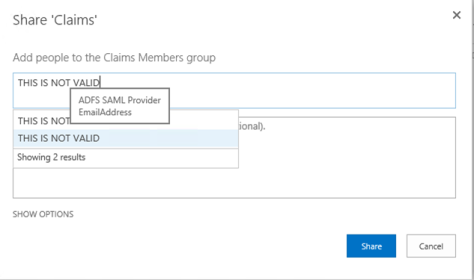
People picker

This is a known issue. As stated on TechNet (http://technet.microsoft.com/en-us/library/gg602078(v=office.15).aspx), “when you use SAML token-based authentication, all queries entered in the text box are automatically displayed as if they were resolved, regardless of whether they are valid users or groups”.  Therefore, we need to implement a custom claims provider in SharePoint, so SharePoint could query AD directly and the People Picker will work properly.  We could find from the internet a sample of such custom claims provider: http://ldapcp.codeplex.com/.

User Profile Sync

You will need to configure User Profile Service Application separately for ADFS.  Otherwise, users authenticated through ADFS will not be able to have their profiles synced from AD and consequently not populated to the site collections. They will not be able to use the functions dependent on user profiles, for example outgoing email service (simply because there is no email address in the user profile).

After the basic setup of ADFS for SharePoint, a User Profile Synchronization connection and a User Property mapping needs to be set up to make sure ADFS users’ properties are synced. Here are the steps to create a Profile synchronization connection to a directory service for ADFS users.

a.On the Add new synchronization connection page, type the synchronization connection name in the Connection Name box: User Profile Sync for ADFS.
b.From the Type list, select the type of directory service to which you want to connect.
c.Fill in the Connection Settings section according to the directory service to which you are creating a connection.
d.In the Forest name box, type the name of the forest.
e.Click Specify a domain controller and type the domain controller name in the Domain controller name box.
f.In the Authentication Provider Type box, select Trusted Claims Provider Authentication.
g.In the Authentication Provider instance box, make sure ADFS is selected.

h.In the Account name box, type the synchronization account domain\sp.profile.

i.In the Password box, type the password for the synchronization account.
j.In the Confirm Password box, type the password for the synchronization account again.
k.In the port box, enter the connection port 389.

l.In the Containers section, click Populate Containers, and then select the containers from the directory service that you want to synchronize.
m.Click OK.

Here are the steps for mapping User Properties for ADFS users.
a) On the Manage Profile Service page, in the People section, click Manage User Properties.
b) Click Claim Provider Identifier and choose Edit.
c) The mapping should have been configured automatically when the Synchronization connection was created. Make sure attributed ADFS is imported for the Connection User Profile Sync for ADFS.
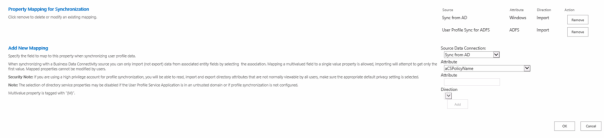
Auto-ed

d) Click OK.
e) On the Manage User Properties page, click claim User Identifier.
f) For the source User Profile Sync for ADFS, import email as the Claim User Identifier.

Last

Audience:

For the users authenticated through ADFS, Audience does not work even your have synchronized user profilers to SharePoint. You will need to create users manually or implement custom codes. If you would like to create users manually, create the profiles with their proper claims attributes—for example, i:05:t|AD FS with
roles|name@contoso.com as the account name—and then populate the other fields with data that you want to use in your audiences. However, without implementing custom codes, you cannot use a user-based audience, such as membership in a group, for the audience.  You implement custom code in order to do that. It might be more efficient to use the property-based audience in this case.

This TechNet article mentioned this limitation:
http://technet.microsoft.com/en-us/library/dn720355(v=office.15).aspx

Other known issues:

A few things don’t work, such as search alerts. Search Alerts does not work with SAML security tokens (generated by ADFS). On TechNet, there is an article that covers this topic for SharePoint 2010:
http://technet.microsoft.com/en-us/library/hh706161.aspx There seems no improvement in this area in SharePoint 2013.

There are more issues if you are using an older version of SharePoint or ADFS. However, the good news is there are some updates if you are using SharePoint 2013 and ADFS 3.0.  For example, check out this blog for how to make SharePoint hosted apps work with ADFS 3.0:

http://www.wictorwilen.se/sharepoint-2013-with-saml-claims-and-provider-hosted-apps

Alerts

If there have multiple zones, and the users subscribe to an alert from a non-default zone, in the email they receive about the alerts, the links are linked to the default zone.  This can only be resolved by custom codes. For a solution, you could check out this blog post:
https://timpanariuovidiu.wordpress.com/2014/06/23/sharepoint-2013-alerts/

Groups claims

For the LDAP attributes being passed to SharePoint as outgoing claims, you could pick up the one you need.  You could just use one sole attribute if you only would like to authenticate individual users.  You could for example only pass Email address, and all users will be able to get authenticated with their email addresses. However, if you could like to grant permissions to security groups in AD for ADFS users, you will need to pass group claims. The way to do it is to firstly in ADFS, make sure the LDAP attribute “Token-Groups – Unqualified Names” is mapped to the outgoing claim type “Role”. In this case, the sAMAccountName of the security groups will be passed to SharePoint as plain text.

BTW, if you forget to do this when the trusted token issuer (ADFS) was created, you could either recreated it including the “role” claim mapping or just update the existing one.  Here is the script to use:

$issuer = Get-SPTrustedIdentityTokenIssuer
$issuer.ClaimTypes.Add("http://schemas.microsoft.com/ws/2008/06/identity/claims/role")
$map=New-SPClaimTypeMapping "http://schemas.microsoft.com/ws/2008/06/identity/claims/role" -IncomingClaimTypeDisplayName "Role" -SameAsIncoming
$issuer.AddClaimTypeInformation($map)
$issuer.Update()

For the URI of each type of claim, you could refer to this article:

http://technet.microsoft.com/en-us/library/ee913589.aspx

Browser support

When implementing ADFS for SharePoint, you will encounter a few issues.  Some of the actually have been mentioned above.  I discovered one issue with Chrome in one the projects, and it has a solution.  You could check out this blog for details:
http://jackstromberg.com/2014/03/adfs-v3-on-server-2012-r2-allow-chrome-to-automatically-sign-in-internally/

Configuring SharePoint and Office Web Apps to Support SSL Offload

When Load Balancing SharePoint Web Servers and Office Web Apps Servers, some organization would like to adopt SSL offload to improve overall network performance. In these organizations, either the communication between the load balancer and SharePoint Servers are closed so no one could possibly listen in, or just that internal regulations allow non-encrypted traffic between the load balancer and the server behind it. They could bind the SSL certificate only at the load balancer, while on the servers behind, port 80 or other ports are used but without SSL.

In the context of a SharePoint Farm, to support this setup, there are certain configurations to be done on SharePoint as well as the Office Web Apps Server farm (provided that there are more than one OWA servers.

Office Web Apps Server Farm

Configure the Office Web Apps farm with the –AllowHTTP and –SSLOffloaded options set to true.

For example, when creating a new Office Web Apps farm with the cmdlet New-OfficeWebAppsFarm, use the parameter –SSLOffloaded. In this case, the value of –AllowHTTP will be set to true automatically. If the server farm has been created without supporting SSL offload, you could simply, use the Set-OfficeWebAppsFarm cmdlet to change the values.

SharePoint Farm

First of all, there is a difference between path-based site collections and host-named site collections.

For path-based site collections:

Configure Alternative Access Mapping to support the SSL Offload.

When SSL is offloaded to the load balancer, the web applications would not be configured to use SSL. However, there is a difference between the URL that users use to access the web application and the URL set at IIS. For example, the URL used by uses is https://sharepoint.contoso.com as SSL is configured at the load balancer, while in SharePoint, the web applications are created as http://sharepoint.contoso.com.  Without AAM accommodating the difference between the internal and external URL, the SharePoint sites may not work properly. One possible behavior is that the browser will warn you that the content is not secure.

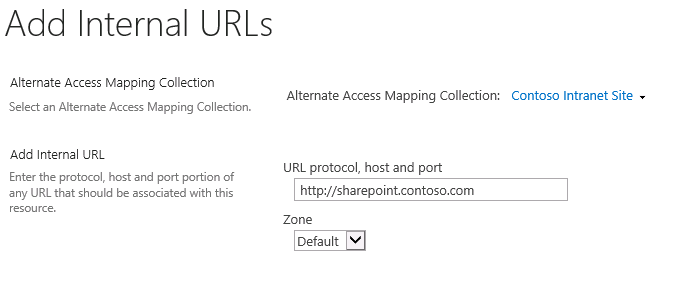
To configure AAM to support SSL offload, you should first make sure the public url is set to https:// and then add an internal URL as http://. Simply adding a URL for HTTPS will not work. Here is one way to configure it:

  1. From SharePoint Central Administration navigation pane, click Application Management.
  2. In the main pane, under Web Applications, click Configure alternate access mappings.
  3. From the Internal URL list, click the Internal URL corresponding to the Public URL you want to be accessible through the load balancer.
  4. The Edit Internal URLs page opens.
  5. In the URL protocol, host and port box, change the protocol from http:// to https://.

2014-08-24_1534

  1. Click the OK button. You return to the Alternate Access Mappings page.
  2. On the Menu bar, click Add Internal URLs.
  3. In the URL protocol, host and port box, type the same internal URL used in step 4, but use the http:// protocol. This allows access to the non-SSL site from behind the load balancer.

2014-08-24_1536

  1. Click Save. The result should look like this:

2014-08-24_1536_001

For host-named site collections:

AAM does not work. You need to configure the load balancer (or the reverse proxy) to add http header. More specific information can be found in this TechNet article: https://technet.microsoft.com/en-us/library/cc424952.aspx#section2g

If you are using F5 load balancer, you can also find a specific user guide for this scenarios for SharePoint: https://www.f5.com/pdf/deployment-guides/microsoft-sharepoint-2016-dg.pdf